
When writing essays, research papers, or bibliographies, formatting matters. A hanging indent is a key requirement in APA, MLA, and Chicago citation styles, and Google Docs makes it easy to do — once you know where to find the settings.
This step-by-step guide explains how to create a hanging indent in Google Docs with examples and visuals.
What Is a Hanging Indent?
A hanging indent means the first line of your paragraph stays at the margin, while the rest of the lines are indented.
It looks like this:
Doe, J. (2023). Exploring Cognitive Behavior Therapy. New York: Mindful Press.
    This citation continues here on the second line with a hanging indent.
In this format:
- The first line starts at the left margin.
- The following lines are indented 0.5 inches.
Step-by-Step: How to Do a Hanging Indent in Google Docs
Step 1: Highlight the text
Select the text or citations where you want to apply the hanging indent.
For example, highlight your entire Works Cited or References section.
Step 2: Turn on the ruler
If you don’t see the ruler at the top of your document:
- Go to View → Show Ruler
The ruler helps you adjust the indent visually.
Step 3: Adjust the indent markers
You’ll notice two blue markers on the ruler at the top:
- Top triangle: Controls the first-line indent.
- Bottom triangle: Controls the left indent for all lines.
To make a hanging indent:
- Drag the bottom triangle (left indent) to 0.5 inches.
- Then drag the top triangle (first-line indent) back to 0 inches.
Visual Example:
Imagine your ruler like this:
|----0"----|----0.5"----|
Top triangle: at 0"
Bottom triangle: at 0.5"
This creates a perfect hanging indent.
Step 4: Use the menu method (Alternative)
If you prefer menu settings:
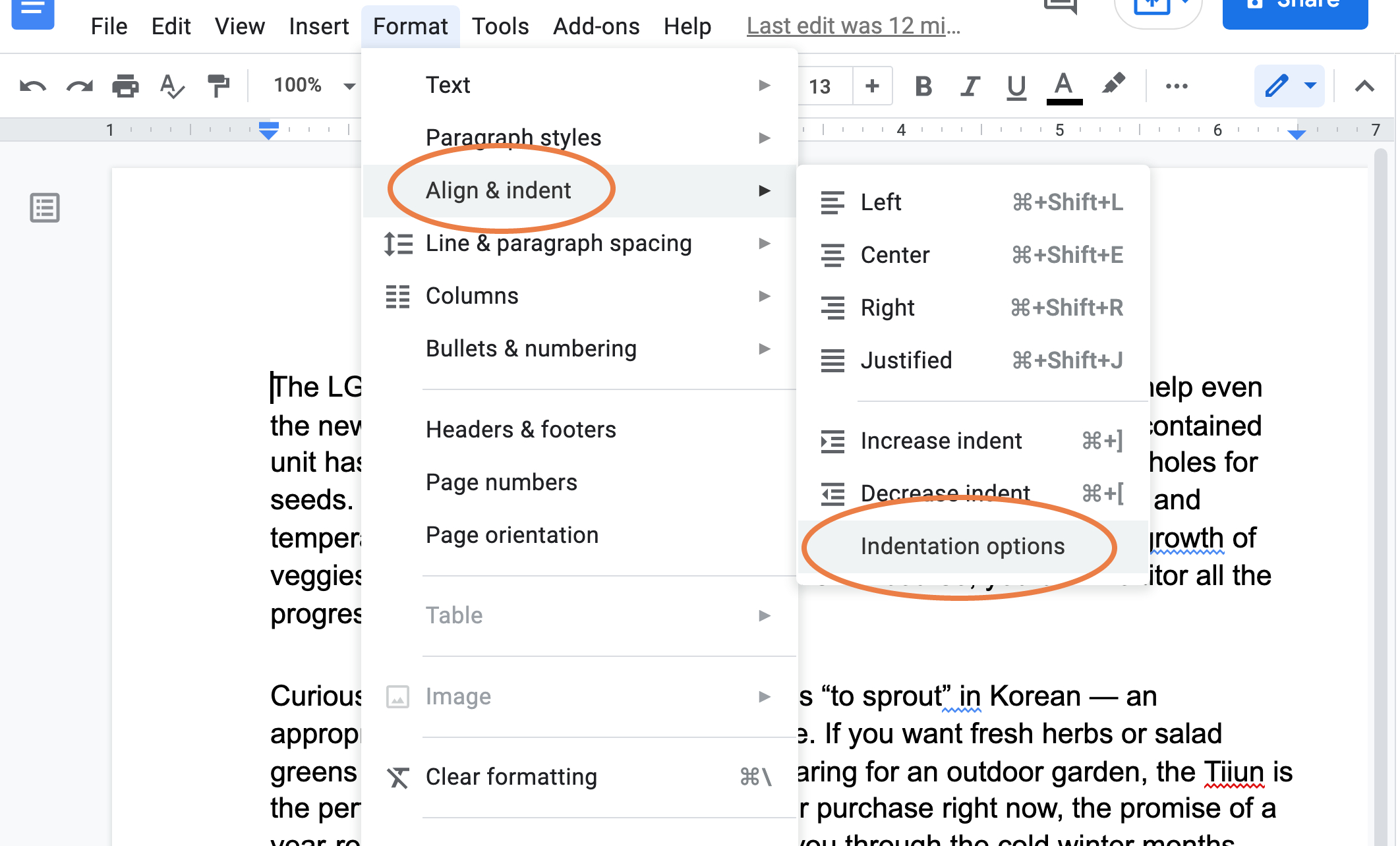
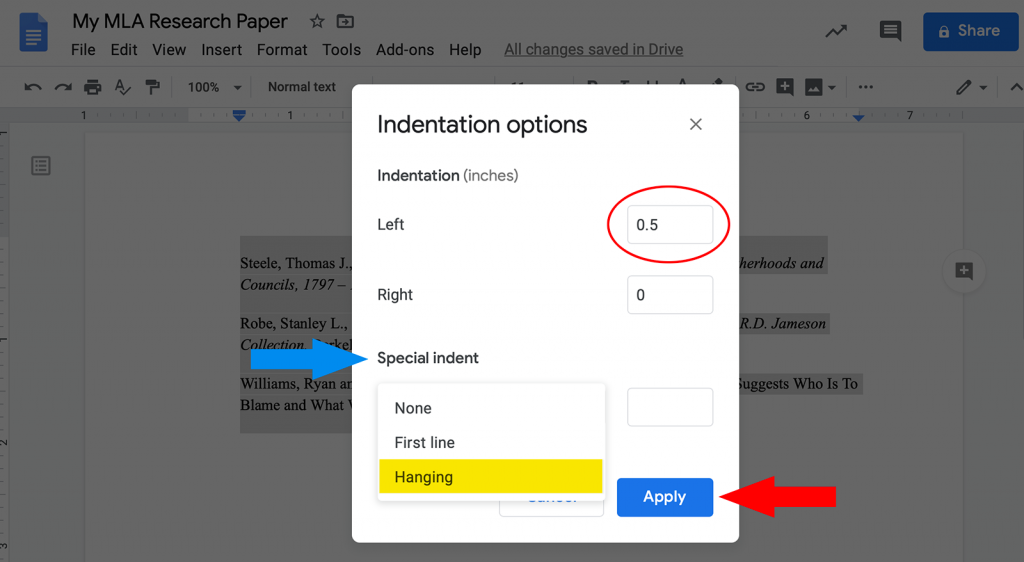
- Click Format → Align & Indent → Indentation Options
- Under Special Indent, choose Hanging
- Set it to 0.5 inches
- Click Apply
This is the most precise way to set the hanging indent in Google Docs.
Example: MLA Format Hanging Indent
Here’s how it should look in MLA Works Cited format:
Smith, John. “Understanding Depression in Adolescents.” Journal of Youth Studies,
    vol. 12, no. 3, 2022, pp. 45–60.
Johnson, Mary. "Mindfulness Techniques in Therapy." Psychology Today,
    2021, www.psychologytoday.com.
Each second line starts 0.5 inches to the right of the first line.
Example: APA Format Hanging Indent
And here’s an APA reference list example:
Brown, A. (2020). The power of cognitive restructuring. Journal of Mental Health, 15(4), 123–135.
    https://doi.org/10.1016/j.jmh.2020.03.002
Lopez, R. (2022). Behavioral therapy approaches. Clinical Psychology Review, 18(2), 99–112.
    https://doi.org/10.1002/cpr.304
In both styles, Google Docs automatically maintains the hanging indent once you apply the setting.
Bonus: Hanging Indent Shortcut in Google Docs
While there isn’t a one-key shortcut, you can use this quick method:
- Select your text
- Press Ctrl + A (Windows) or Command + A (Mac) to select all citations
- Then go to Format → Align & Indent → Indentation Options → Hanging (0.5″)
Troubleshooting Common Issues
If your hanging indent looks uneven:
- Check that your ruler is visible
- Avoid pressing the Tab key manually
- Ensure no extra line breaks between citations
To fix it, reapply the “Hanging (0.5 inches)” option from Format → Indentation Options.
Read More: What Is the AC Milan vs SSC Bari Timeline?
Why Hanging Indents Matter
Hanging indents:
- Improve readability in your reference lists
- Ensure APA and MLA compliance
- Make your Google Docs formatting professional
They’re especially useful for academic writing, research papers, and business documentation.
References
- APA Style Guide (7th Edition): https://apastyle.apa.org/
- MLA Formatting Guidelines: https://style.mla.org/formatting-papers/
- Google Docs Help: https://support.google.com/docs/answer/
Final Thoughts
Creating a hanging indent in Google Docs is simple and essential for professional formatting. Whether you use the ruler tool or the Format menu, following these steps will make your citations clean, consistent, and compliant with academic style guides.
So next time you’re preparing your Works Cited or References page, just remember:
👉 Highlight → Format → Indentation → Hanging (0.5 in) — and you’re done!
Here is official Google reference: https://docs.google.com/document/d/1QGAEu5JjHNHZMzmwtnXstgYOuZnjCQRFoCnwp7M_OsA/edit?tab=t.0



Leave a comment